Tuesday, October 2, 2018

New book on Microsoft Dynamics 365 FinOps – “Microsoft Dynamics 365 FinOps – Fixed Price Projects Revenue Recognition In-depth”

I have released a new paperback book called “Microsoft Dynamics 365 FinOps – Fixed Price Projects Revenue Recognition In-depth” on Amazon about the fixed price projects revenue recognition last Thursday .i.e. 27th September 2018. In this blog post i am going to talk about the book and the motivation behind that.
I knew basic fixed price projects revenue recognition and how to perform it in the system. However, when it came to knowing all the possible fixed price projects revenue recognition scenarios, i always had to dig the internet and find out how this scenario works and how that scenario works. And while doing that i realized that apart from the basic information about the fixed price revenue recognition, there was not much available on the internet. This triggered me write this book. I thought lets put all the logical and allowed scenarios on paper in details, along with the screenshots, explanation, supporting T-accounts, other relevant details, exceptions, shortcomings, specific behavior  and have it all in one place, in one book. The aim was to stop looking the internet endlessly for this topic henceforth.
What i did initially was plotted all the permutations and combinations with all the elements of the project group like 4 values of ‘Revenue recognition accounting rule’, 3 values of ‘Calculation methods’ and 4 values of ‘Matching principle’ and put them on excel sheet. The number came somewhere around 36. Also added further scenarios when i brought the ‘Cost template’ and its values for ‘Completion based on’ in scope. This added few more permutations and combinations with ‘Straight line’ and ‘WBS’ type of revenue recognition further adding to the scope. However, after trying each one of them by setting them up individually in the system, i concluded that 11 unique scenarios are the ones which i should be writing about in this book.
I decided to name it as “Microsoft Dynamics 365 FinOps – Fixed Price Projects Revenue Recognition In-depth” as this book gives the in-depth explanation for all the 11 scenarios along with all the accounting and relevant supporting details in over 200 pages. The second important decision was to print this book in COLOR, as the screenshots had many markings in RED, which i wanted the readers to really look at and understand it at once. The aim was always to uncover this complex beast of revenue recognition engine for fixed price projects.
Being a functional consultant, i have always faced many situations when client used to ask questions about a specific revenue recognition scenario and whether that is possible in the system and can i explain it. My regular answer was, “Let me get back to you on this”, as i knew that this is a complex area and this needs thorough preparation before presenting it to the client. Now with this book in place, i am personally in a much better position than what i was earlier. Not that i would answer all the questions about this topic instantly but at-least the turnaround time on them and the confidence would be much higher. I seriously feel that consultants working in the area of ‘Project management and accounting module’ of Microsoft Dynamics 365 FinOps, should definitely have a read through of this book.
Amazon link for the book is as follows: http://amzn.eu/d/7cEcot9
If you happen to read the book and if you wish to provide any feedback, then don’t hesitate to email it to me on kusaresarang@gmail.com. And if you like the book, then please write a review on Amazon, so that it would benefit other buyers too.
Thanks again!!
Kind Regards
Sarang Kusare

Monday, September 17, 2018

Quick post : Split the On-account invoice transaction for Credit note

When the project invoice includes just one on-transaction, then system does not allow the user to split that single transaction during the credit note.

Single on-account transaction cannot be split during credit note 

However when the project invoice involves multiple on-account transactions from the same and / or multiple projects / sub-projects, then the user can split the credit note and just process the credit note for the desired on-account transactions.

Multiple on-account transaction on the same invoice can be split during credit note
If the invoice proposal is run again, then only the one selected for credit note appears in the 'Create invoice proposal'.

On-account transaction selected for credit note
Once the credit note is posted, the transaction status for the selected on-account transaction changes to 'Chargeable'.

Status changed to 'Chargeable'
Thanks
Sarang Kusare

Friday, September 14, 2018

Reverting the SAME project transaction which is in 'Selected for credit note' back to 'Invoiced'

I just now came to know a way of reverting the SAME project transaction which is in 'Selected for credit note' back to 'Invoiced'.
When the project transaction is invoiced, the 'Transaction status' is changed to 'Invoiced':
When you select the transaction for credit note, the 'Transaction status' is changed to 'Selected for credit note'
I was wondering how do i put this 'Transaction status' back to 'Invoiced' as i selected the transaction mistakenly for credit note.
The solution is to just run the process again and 'Deselect' the transaction, which will revert the 'Transaction status' from 'Selected for credit note' to 'Invoiced'.
When clicked 'Ok', the system reverts the 'Transaction status' from 'Selected for credit note' back to 'Invoiced'.
The reason for knowing this was, i was getting stuck while posting an estimate on a % complete fixed price project. The on-account transaction based on which system calculates the accrued revenue was in the 'Selected for credit note' state and hence system was giving the error :
"On account cannot be chosen for type project and ID"
Had i known this process of reverting the transaction status back to 'Invoiced' i would have been successful in posting the estimate.

Kind Regards
Sarang

Calculation Method and Balancing Fee Journal

There are three calculation methods when it comes to fixed price projects, they are:


  1. None
  2. Markup percent total
  3. Markup percent estimate line

This post is not about describing what each of the calculation method does but this post is the super summary of when does the system create the balancing fee journal and when it does not. This post is for the advanced users of revenue recognition functionality. It is assumed that the readers of this post are aware of all the three methods and how they behave. This is a small post to just present the gist in a table format with respect to the creation of balancing fee journal for all three calculation methods.

Calculation method and Balancing fee journal

System behavior is different when the: 
  • dimensions are NOT present on the project and hours transactions and  
  • dimensions on the project and hours transactions are different
No dimensions on the project and hours transactions

Contract value - 100,000

On account transaction
Hours forecast - 146

Hours forecast
No dimensions on the project

No dimensions on project
Contract value distributed during the estimate

Contract value distribution among cost lines

Cost posted for all the three cost lines are 1,800, 1,200 and 3,600, which is equal to 6,600. Based on the contract value distribution, the revenue recognized should be 30,000. [((1,800 / 3,600) *20,000) + ((1,200 / 3,600) *30,000)) + ((3,600 / 18,000) *50,000))]

System suggested percent complete

System suggested percent complete

Actual hours v/s Hours forecast

But system suggested percent complete is 27.40 [((Total posted hours / Total hours forecast in Qty)*100), which is (40/146)*100 = 27.40] hence the accrued revenue value would be 27,400. Hence the balancing fee journal should be approximately 2,600. Completion is based on 'Quantity' in the cost template.

When the estimate is posted, following is the voucher posted:

One voucher for accrued revenue
And the posted transactions are as below, which shows the actual 30,000 accrued revenue and the balancing fee transaction of approximately 2,600. However strange enough there is no voucher for that balancing transaction.

Balancing fee transaction 

Dimensions on the project and hours transaction are different

I repeated the above example with the same values, but this time with the dimensions on the project and hours transaction. However the 'Department' dimension  on the project is 22, and on all the three hours transactions are 23, 24 and 25 respectively.

With all the steps same as above, when the estimate was created, the system showed a percent complete of 27.40. I manually changed to 25 to see the impact on the posting.

Percent complete changed from automatic to manual

The voucher that was posted was expected to have a balancing fee transaction of 5000, with the dimensions from the project.

Balancing fee transaction

Posted transaction was as below:

Posted transactions
However in this case the voucher was posted for the balancing fee transaction.

Hopefully this post has helped you get more insight into the revenue recognition and generation of balancing fee transaction.

Kind Regards
Sarang Kusare

Tuesday, September 4, 2018

Quick Post – Fixed Price project eliminate button and invoice posting date

Everyday we learn, no matter what and that’s absolutely true. However more important is to retain what we have learnt today and reduce the time in re-inventing the wheel later. I just now learnt a very small thing but i still wish to put this in writing so that i remember it in future and also if it helps others, then nothing like it.
If the project  is over and the ‘Eliminate’ button does not activate, then there are two reasons for it, one is either the cost is not yet set to 0 or the contract value (On-account) is not yet invoiced. However there is one more reason why it wont be active, which i learnt today.
In my example, which is a straight line project, where the ‘Actual start date’ is 14th of Jan 2018 and ‘Actual end date’ is 13th of Feb 2018, however we are in September. When i invoiced the on-account (contract value), i did not realize that i haven’t changed the ‘Posting date’ and it was today, .i.e. 4th of September 2018.

On account invoice posting date

After that i started posting estimates. As there were only two months for which i need to run the estimates, i ran it for Jan 2018 and Feb 2018 and i was expecting the ‘Eliminate’ button to get active so that i can eliminate the project. However system did not activate the ‘Eliminate’ button. I instantly realized that system is probably looking at the invoice ‘Posting date’. Hence i continued the estimates till September 2018 and after the estimate for September 2018 was posted, system activated the ‘Eliminate’ button. Notice the ‘Invoice revenue’ also appeared in the month of September only.

Eliminate button activated after the September 2018 estimate posting

Just to prove it completely and validate it 100%, i created one more project but this time while posting the on-account invoice, i deliberately changed the posting date to 15th of Jan 2018.

On account invoice posting date

After that i posted two estimates for Jan 2018 and Feb 2018 and then instantly after the Feb 2018 estimated was posted, system activated the ‘Eliminate’ option.

Eliminate option activated after the February 2018 estimate posting

I know this is pretty small for a blog post but thought of capturing it so that it does not get lost.
Kind Regards
Sarang Kusare

Friday, August 31, 2018

Recognizing the remaining “On-account” on T&M project by dimension

Business case – A prepayment is received from the customer for an additional support contract for 35 hours on top of the actual core project. However the contract is such that whenever a consultant spends time on this engagement, that time is booked on the separate support project and a zero value invoice is raised against the project for the customer to know the hours spend till date. There is no obligation for the vendor to return the remaining hours amount to the customer. If the customer does not spend the agreed quota of 35 hours and project ends, then the vendor can write-off the remaining hours and recognize the revenue for the hours not used by the customer. This is a typical scenario in professional service companies and this is how you cater to it from Dynamics 365 FinOps Project management and accounting module.
Contract Value = 10,000
Cost price per hour = 100
Estimated cost = 3,500 (35*100)
Solution – A T&M kind of a project is created where ‘Hours’ and ‘On-accounts’ are set to go to ‘Balance’ first.


Project group setup

The project dimensions are as follows.


Dimensions on the project

For the prepayment received from the customer, an on-account is billed initially at the start of the project.To raise a prepayment, ‘Customer advance’ feature is used, which automatically create a ‘Deduction’ type of transaction along with the ‘Prepayment’ type. When the project invoice for prepayment is posted, the accounting entry is as below. This is an unearned revenue as associated cost is yet to be booked against this.
Note the dimensions on the posting. These dimensions are inherited from the project.


Dimensions on the on-account invoice

The consultants working on the project starts posting their time-sheets. In this example we will put two hour journals but with different ‘Department’ dimension on each one of them.
Time-sheet posted by consultant number one – Will
Note that Will belongs to ‘Department number 23 = Operations’


Time-sheet posted by Will

Time-sheet posted by consultant number one – Chris
Note that Chris belongs to ‘Department number 28 = Client services’


Time-sheet posted by Chris

Total of 30 hours are utilized by the vendor for customer incidents by the people from two different departments on the vendor side. Now at the month end, it the time to raise a 0 value invoice. The sale price against the hours transaction is netted off against the deduction type of on-account transaction. To achieve this deduction transaction is split at the time of invoice creation.


Raising a 0 value invoice

By doing this the revenue is split across the two cost transactions proportionately with correct dimensions on them. Please have a look at the screenshot below:


Cost and Revenue has same dimensions

So far so good. Now assume that the project is over and the vendor wishes to recognize the remaining revenue of 250. To do this, user needs to post a fee journal for a value of 250 and then raise a 0 value invoice by netting it off against the remaining  deduction on-account value. However the only issue with this is, the fee journal that is posted will be having dimensions from the project and hence the revenue posted after the 0 value invoice would also have dimensions from the project and not from the actual cost transactions.  If this is the option that user wishes to go ahead with then no need to navigate to ‘Fee journals’ menu item to create fee transaction specifically, it can be done on the ‘Draft invoice proposal’ screen by clicking the ‘Create fees’ button. Once the details are filled in and ‘Ok’ is clicked, then fee journal is posted, with dimensions inherited from the project and it will be a part of the invoice proposal, ready to be posted.


Create fee option on the ‘Draft invoice proposal’

However if the user wants to split the remaining revenue across the posted cost transactions, a manual fee journal needs to be created and the lines of the fee journal needs to be split in the equal proportion and on each line the appropriate dimensions from the cost transaction needs to be selected.
Fee journal lines for 150 and 100 are posted. The fee journal line numbers derived are in proportion with the total hours posted earlier. Have a look at the posted fee journal lines.


‘Accrue revenue’ checkbox checked, hence fee journal voucher

0 value invoice is then created including these fee journal lines.


0 value invoice created including the fee lines

Once this invoice is posted, the remaining revenue value of 250 is then automatically allocated to the already posted cost lines. This step serves two purposes, one to recognize the remaining revenue value which is initially posted as deferred revenue and second to recognize it by dimension, so that revenue and cost by dimension is also correct.
The revenue that was accrued by the fee journal is reversed and the remaining deferred revenue is recognized as a project revenue by dimension.


Revenue recognized by dimension

This manual workaround of fee journal is the way to recognize the remaining revenue on the project which is in balance sheet and that too properly by dimension.
Hope you have learnt something new after reading this today.
See you soon in the next post…till then take care..!!
Kind Regards
Sarang

Wednesday, August 22, 2018

Dynamics 365 FinOps workflow - "Company-specific" v/s "Organization-wide" and related setup

Workflows in Dynamics 365 FinOps are of two kind and they are:
  1. Company specific workflows
  2. Organization wide workflows
These workflows are system designed and thats how they are. Details of which workflows are company specific and which ones are organization wide is available on technet. However you could also get to know this when you create workflows. If the 'Association' points to a company like USSI in this example, its company specific workflow and if its 'Organization-wide', its organization wide workflow.

'Company specific' workflow

'Organization-wide' workflow

This is fine, however it gets tricky when you try to define email templates for the same. The reason I say this is tricky is, there two separate navigations in the system to define the email templates for those two types of workflows and thats not very obvious to the end user.

You may define the email template for one type, say 'Company' type and then try to configure it from the wrong navigation for 'Organization-wide'. Just to make it more clearer, the email template creation and configuration for 'Company' type workflow is defined in 'Organization administration' module and the ones for 'Organization-wide' type workflow is defined in 'System administration' module. Let me show you where.

Email template for 'Company' specific workflow

Email template navigation for 'Company specific' workflow
Email template for 'Company specific' workflow
To view all the email templates, user should click on the 'Show / Hide list' icon.

All email templates for 'Company specific' workflow
Company specific email templates are visible in the company specific workflows:


Email templates visible from 'Company specific' workflow

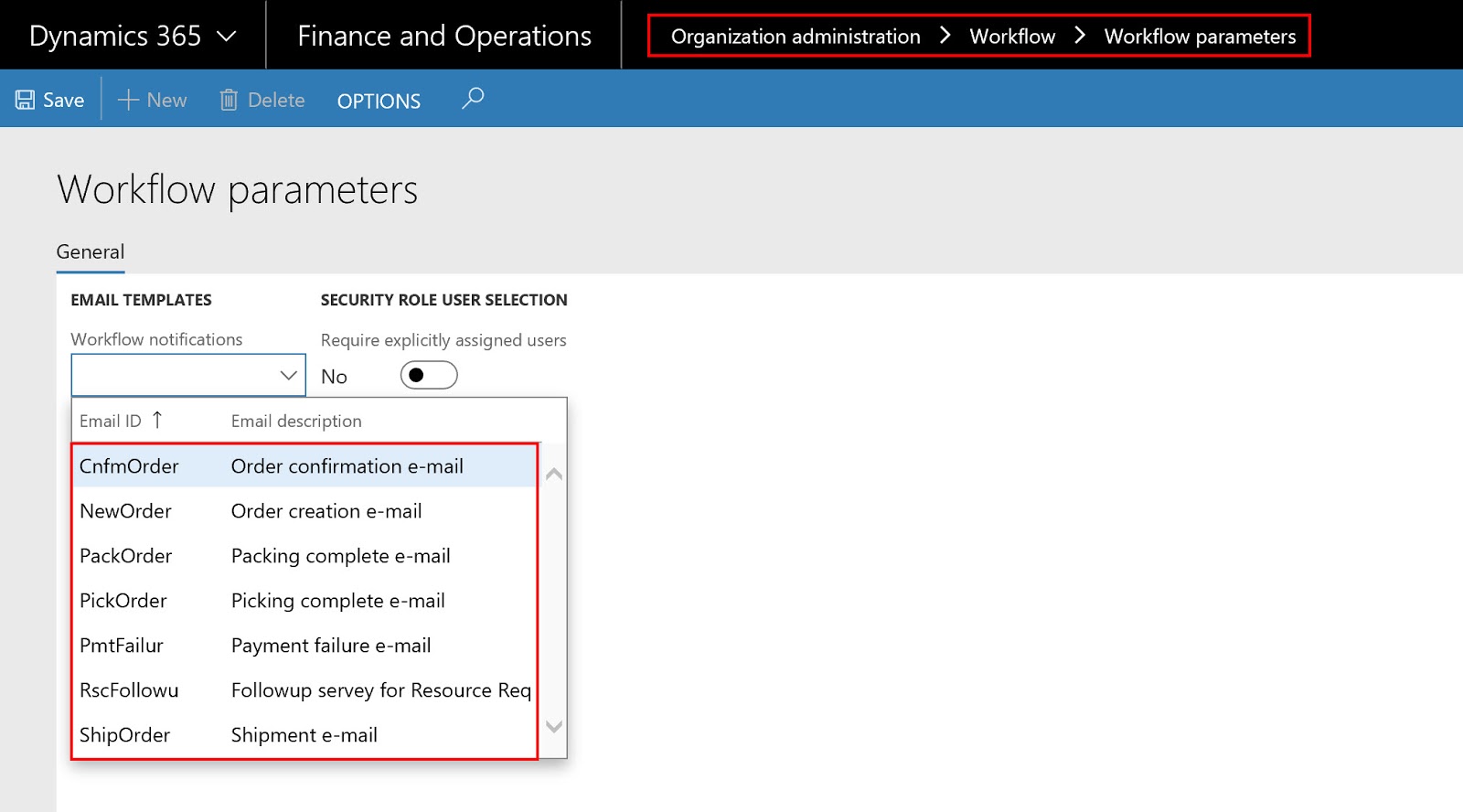
To configure a 'company specific' email template in workflow parameters, user needs to navigate to Organization administration module.

Organization administration > Workflow > Workflow parameters


Email template for 'Organization-wide' workflow


Email template navigation for 'Organization-wide' workflow


Email template for 'Organization-wide' workflow
To view all the email templates user should click on the 'Show / Hide list' icon.

All email templates for 'Organization-wide' workflow

'Organization-wide' email templates are visible in the 'Organization-wide' workflows:

Email templates visible from 'Organization-wide' workflow

To configure a 'Organization-wide' email template in workflow parameters, user needs to navigate to System administration module.

System administration > Workflow > Workflow parameters

Some additional points to remember with respect to the workflow email for both company and organization specific workflows.

Workflow batch creation

Workflow batch needs to be created for the workflow to process. That is done from the 'Workflow infrastructure configuration'.

Workflow infrastructure configuration


Email distributor batch

For the system to send email, there is a batch to be created and run in the background. This is where you do it.

Email distributor batch


SMTP server settings and Email provider 

Technical details around SMTP and Email provider, needs to provided by the system admin.

Email parameters
Email message placeholder in email template

All the notifications specified in the workflow will be emailed to the user if email template has the placeholder specified in it. The email templates can be designed as jazzy as possible, but these are just internal emails, hence they could be as simple as below:

Simple email template with "message" placeholder

This email template will take the message specified in the workflow step and send email message as below:

Workflow notification message
Message will appear in the email message as below. This email is not sent from the system , however i checked it from System administration > Email processing > Email sending status.

Actual email containing the message from the workflow step

Employee email and notification configuration

For the employee to receive emails following setup must be done on the user record. Navigate to the 'User options' from the below:

User options
Click on the 'Account' and enter the 'Email' and also select the 'Email provider id'.

Employee email


Also click on the 'Workflow' and make sure that the 'Send notifications in email' is set to Yes.

Workflow notifications toggle

I know the next point it not that relevant to this topic but wanted to cover it here as it is related to workflow and i do not want to create a separate blog post just for that small but important concept.

Workflow assignments - Expenditure reviewers

There is a new concept in the workflow assignments and that is 'Expenditure reviewers'. This option is present in 'Purchase order workflow', Purchase requisition workflow', 'Expense workflow' etc for 'Assignment type' = Participant.

Assignment type = Participant


Expenditure participant

These can be setup in setup section. I am giving the example of 'Purchase order expenditure reviewers' below.

Purchase order expenditure reviewers

The most important thing to note is there are two types of expenditure reviewers and they are:


  1. Project
  2. Non - project
'Project PO' related expenditure reviewers can be 'Project managers', 'Project controller' and 'Program sales manager' etc along with the 'Dimension owners'. 'Project managers', 'Project controller' and 'Program sales manager' can be specified on the project record and 'Dimension owners' can be specified on the individual dimension values.

Project expenditure reviewers setup


'Non-project PO' related expenditure reviewers can be 'Dimension owners' only.

Non-project expenditure reviewers setup

Above two screen shots mean that if the PO is a project PO then it would go for approval to the 'Project manager' AND the 'Business unit' owner of that PO. And if the PO is a non-project PO then it would go for approval to the the 'Department' owner of that PO.

The 'Project managers', 'Project controller' and 'Program sales manager'  can be set on the project record here:

Responsible persons on Project record

Dimension owner can be set here:

Dimension owner
There can be an overall dimension owner or there can be a dimension owner per legal entity, hence two 'owner' fields are highlighted in the above image.

I know this has been a long post but hope you are now more aware about the workflow and its related setup.

If you have not seen the previous post about functional debug if the workflow does not kick in, then its here.

Thanks
Sarang